
Overview
When reviewing an authorization, you may notice that an attached document is associated with a different patient or a different authorization. In this case, you can remove the document and send it back to the fax queue so it can be routed correctly.
From the Response Window
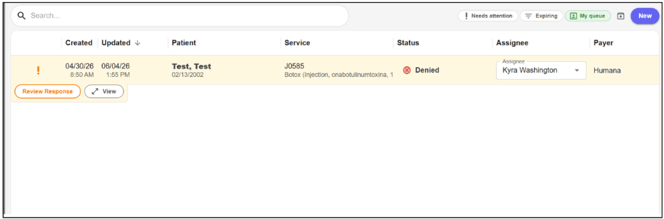
Locate the authorization and click Review Response to open it.
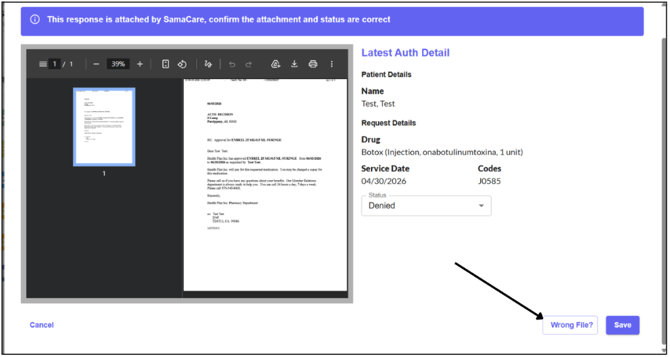
Review the attached document. If it is unrelated to the patient or authorization, click Wrong File.
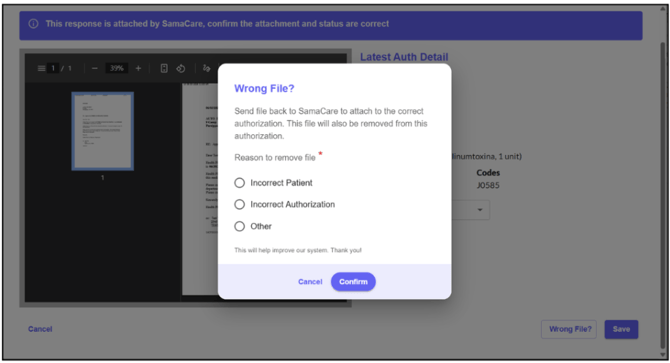
Select the appropriate reason for removal from the options provided, then click Confirm.
The document will be removed from the authorization and returned to the fax queue to be attached to the correct authorization.
From the Activity Screen
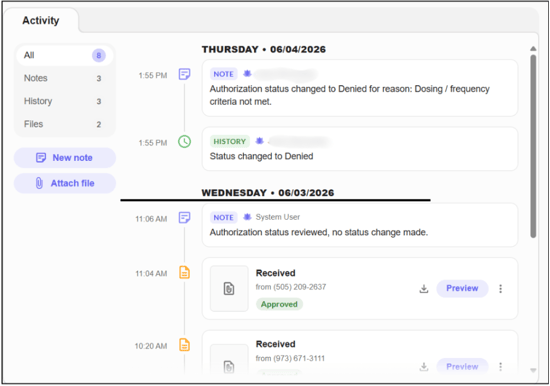
Navigate to the Activity screen and locate the authorization with the incorrect document.
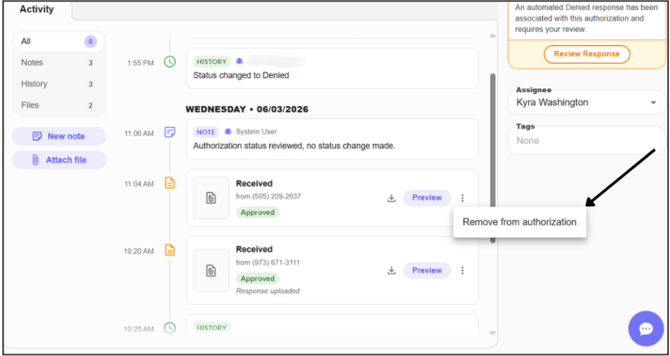
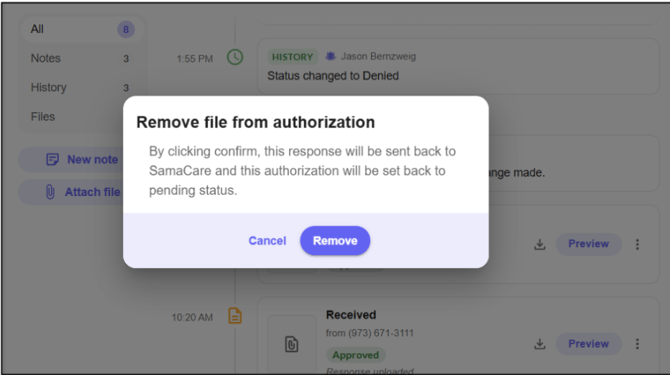
A confirmation window will appear. Click Remove to confirm.
The document will be removed from the authorization and returned to the fax queue for correct processing.
Still need help? Contact support: help@samacare.com