Overview:
This article covers how to add, label, and manage multiple insurance policies for a patient, including setting a default policy and selecting a policy when submitting a new authorization.
In this article:
- Open the patient's insurance section
- Add a policy
- Label the policy
- Add a second policy
- Review and manage all policies
- Delete a policy (if needed)
- Select a policy when submitting an authorization
Step 1: Open the Patient's Insurance Section
From the patient's profile, navigate to the Insurance section where you'll add and manage policies.

Step 2: Add a Policy
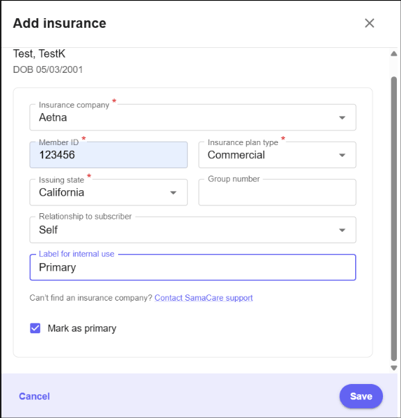
Click Add Insurance and enter the policy details. This is the patient's first policy, so leave the Default Policy checkbox selected.
Step 3: Label the Policy
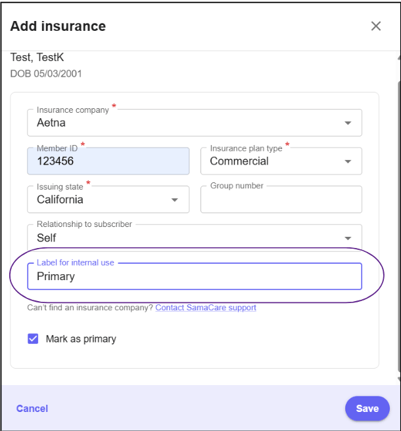
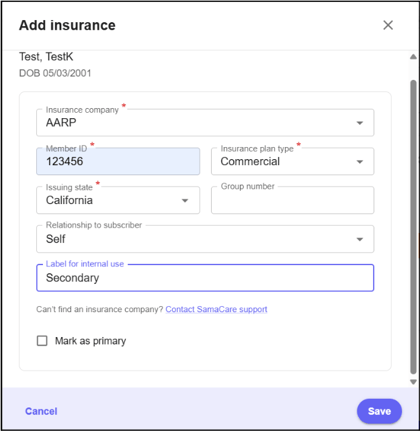
Use the Label field to give the policy a name that's easy to recognize later, such as "Primary" or "Secondary."
Step 4: Add a Second Policy
Click Add Insurance again to enter the patient's second policy (for example, a Medicare or secondary plan), and give it a distinct label.
|
Note: New policies are automatically set as the default. If you want your first policy to remain the default, uncheck Default Policy on this second entry, or update the default afterward. |
Step 5: Review and Manage All Policies
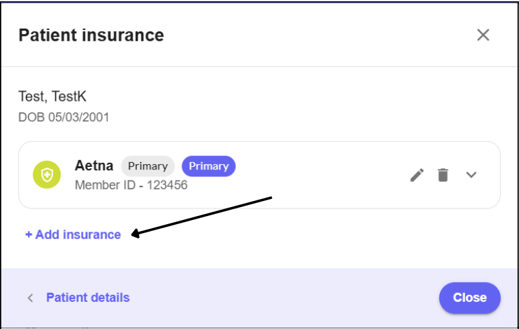
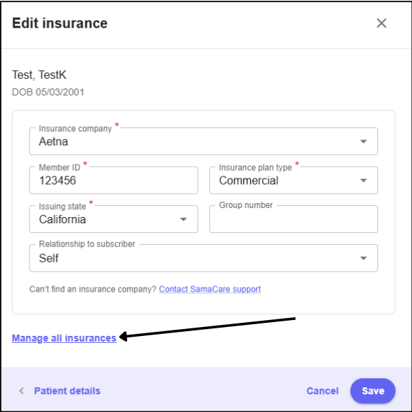
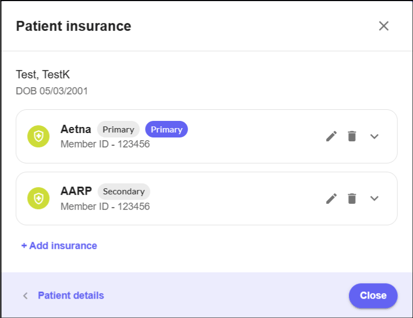
Open Manage Policies to see every active policy on the patient's account in one place, along with its label and default status. From here you can edit or delete any policy.
Delete a Policy (If Needed)
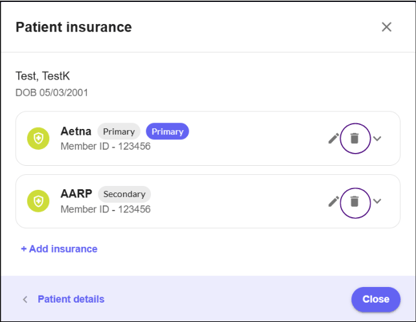
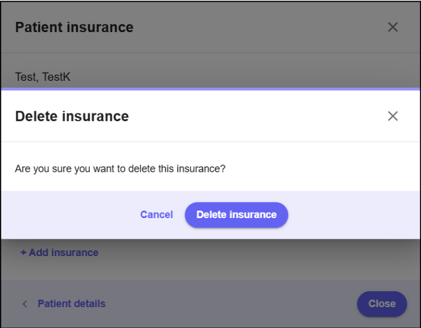
In Manage Policies, select Delete on the policy you'd like to remove and confirm in the pop-up. If the deleted policy was the default, the remaining policy automatically becomes the default.
|
Note: Any authorization already saved using the deleted policy will not be affected. |
Select a Policy When Submitting an Authorization
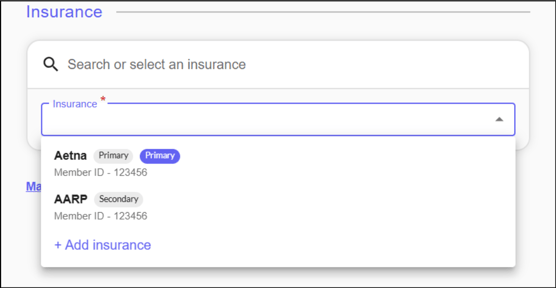
When starting a new authorization, use the insurance dropdown to choose which of the patient's policies to submit against — no need to edit the patient's saved insurance history to do so.