
What is CoPilot?
SamaCare CoPilot is a browser extension that helps users capture and manage prior authorization information in SamaCare while working within insurance payer portals. Users can create or update authorizations, save authorization details to SamaCare, and track requests through determination, all without disrupting their existing workflow.
CoPilot Installation Guide
- For the best experience, we recommend using Google Chrome to access SamaCare. If you do not have Chrome installed, here is a simple guide to download and install at your convenience.
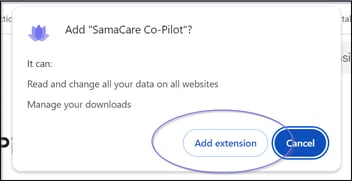
- To install the SamaCare CoPilot extension, use the installation here. Once installed, pin the extension to your browser toolbar for easy access:

- Click the puzzle piece (Extensions) icon in the top-right corner of Chrome.
- Locate the SamaCare CoPilot extension in the list.
- Click the pin icon next to CoPilot.
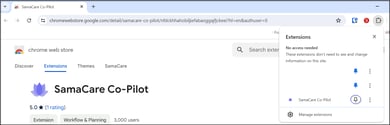
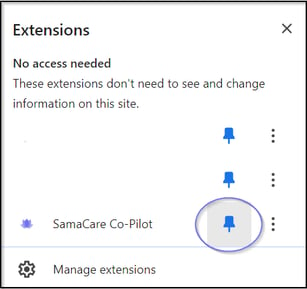
- After pinning the extension, CoPilot will be readily available from your toolbar while you work in insurance payer portals and SamaCare.
Co-Pilot Extension Updates
SamaCare’s Chrome extension updates automatically when a new version is released. Updates typically reach most users within 3–4 days.
If you experience an issue, such as a portal failing to launch, or are using an outdated version, the SamaCare team may ask you to manually update or reinstall the extension.
To update the extension:
- Enter
chrome://extensionsin the Chrome address bar. - Turn on Developer mode in the upper-right corner.
- Select Update.
- Wait for Chrome to update the installed extensions.
- Close and reopen Chrome.
After Chrome restarts, return to SamaCare and attempt to launch the portal again.
Logging In
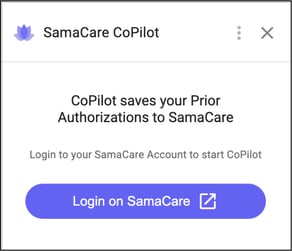
Logging in to your SamaCare account ensures the CoPilot extension is connected and fully functional. This allows CoPilot to sync your data, manage prior authorization requests, and support other tasks within the platform.
If you are not logged in, CoPilot will direct you to the SamaCare web app to sign in before you can continue.
Navigating to the Portal
When you're ready to initiate, update, or review a prior authorization request, navigate to the appropriate payer portal. Using CoPilot, you can capture authorization details, save updates to SamaCare, and review the status of existing authorizations without leaving the portal.
💡 Learn more about submitting via a Portal here.
Launch CoPilot
When you launch a payer portal from SamaCare, the Co-Pilot window will appear on the right side of the screen with a purple Capture button. You do not need to use the Capture button when you first enter the portal. You will use it at the end of the submission to capture the portal confirmation and send the information back to SamaCare.
Complete the Prior Authorization in the Portal
- Begin entering the required authorization information in the payer portal.
- As you move through the portal, look for purple lotus icons next to applicable fields.
- The lotus icon indicates that information from the authorization you started in SamaCare is available to populate that field.
- Click the lotus icon to automatically fill the corresponding portal field with information from SamaCare.
- Continue through the portal until you reach the final Summary or Confirmation page, where you can review the authorization information you entered.
Capture the Portal Authorization
- While on the summary or confirmation page, in the Co-Pilot window on the right side of the screen, confirm that the correct authorization is displayed by reviewing the patient name, date of birth, and authorization ID.
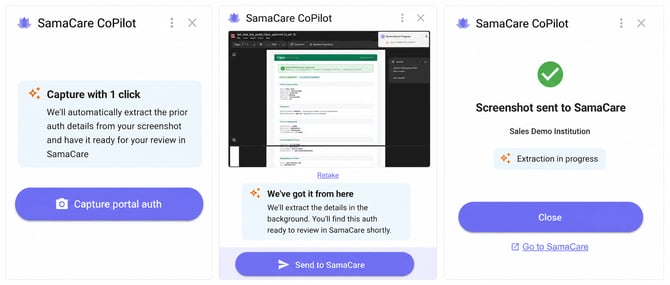
- Click Capture Portal Auth.
- Important: After clicking Capture Portal Auth, do not click anywhere on the page or move your mouse while Co-Pilot captures the portal page.
- Review the capture to confirm that the correct page and information were captured.
- Click Send to SamaCare. Co-Pilot will begin extracting information.
- You can click Close to continue working in the Portal or click Go to SamaCare to navigate back to your SamaCare window
Review and Update the Authorization in SamaCare
- From the PA Table, locate the authorization you just submitted and open it.
- Review the payer response when prompted.
- After confirming the information is correct, click Update Authorization to complete the process.